Installation
Development for the QUTy is supported via PlatformIO. You will need to install the PlatformIO IDE for VSCode, which is available for Windows, macOS, and Linux.
Table of Contents
- Prerequisites
- Installing the QUTy Platform
- Verifying QUTy Platform Installation
- Verifying Driver Installation
- Opening a Project
- PlatformIO Toolbar
- CLI Installation
Prerequisites
- Install the Git client on your system. The default installation options may be used.
- Install Visual Studio Code.
- Install the PlatformIO IDE extension for VSCode.
Windows Users
Install the Silicon Labs CP210x Virtual COM Port (VCP) drivers to enable communication with the QUTy. When downloading, select “CP210x VCP Windows” for an executable installer.
Installing the QUTy Platform
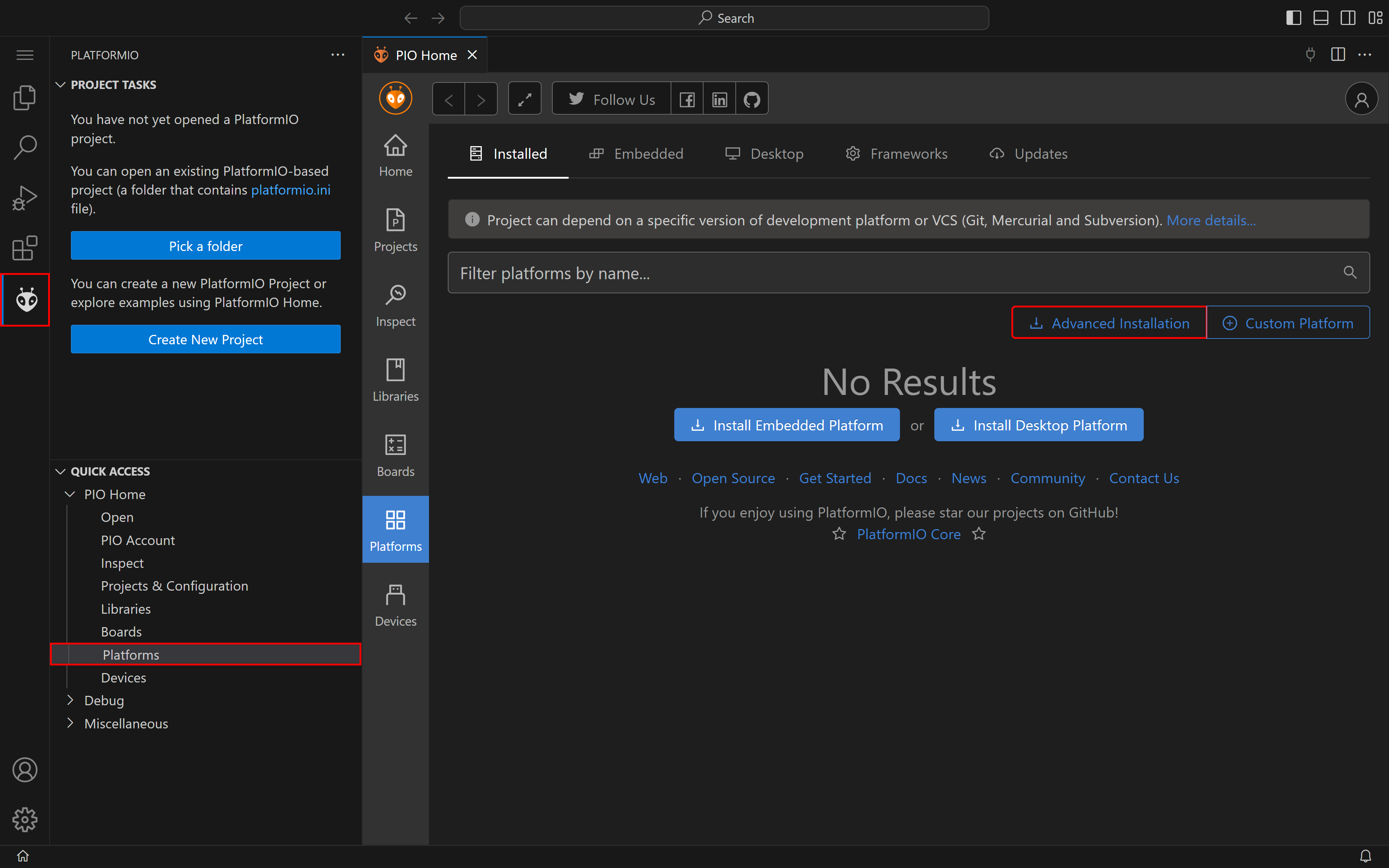
- Open the PlatformIO Home tab in VSCode.
- Navigate to Platforms, then click Advanced Installation.
-
Enter the following URL and click Install:
https://github.com/egb202/quty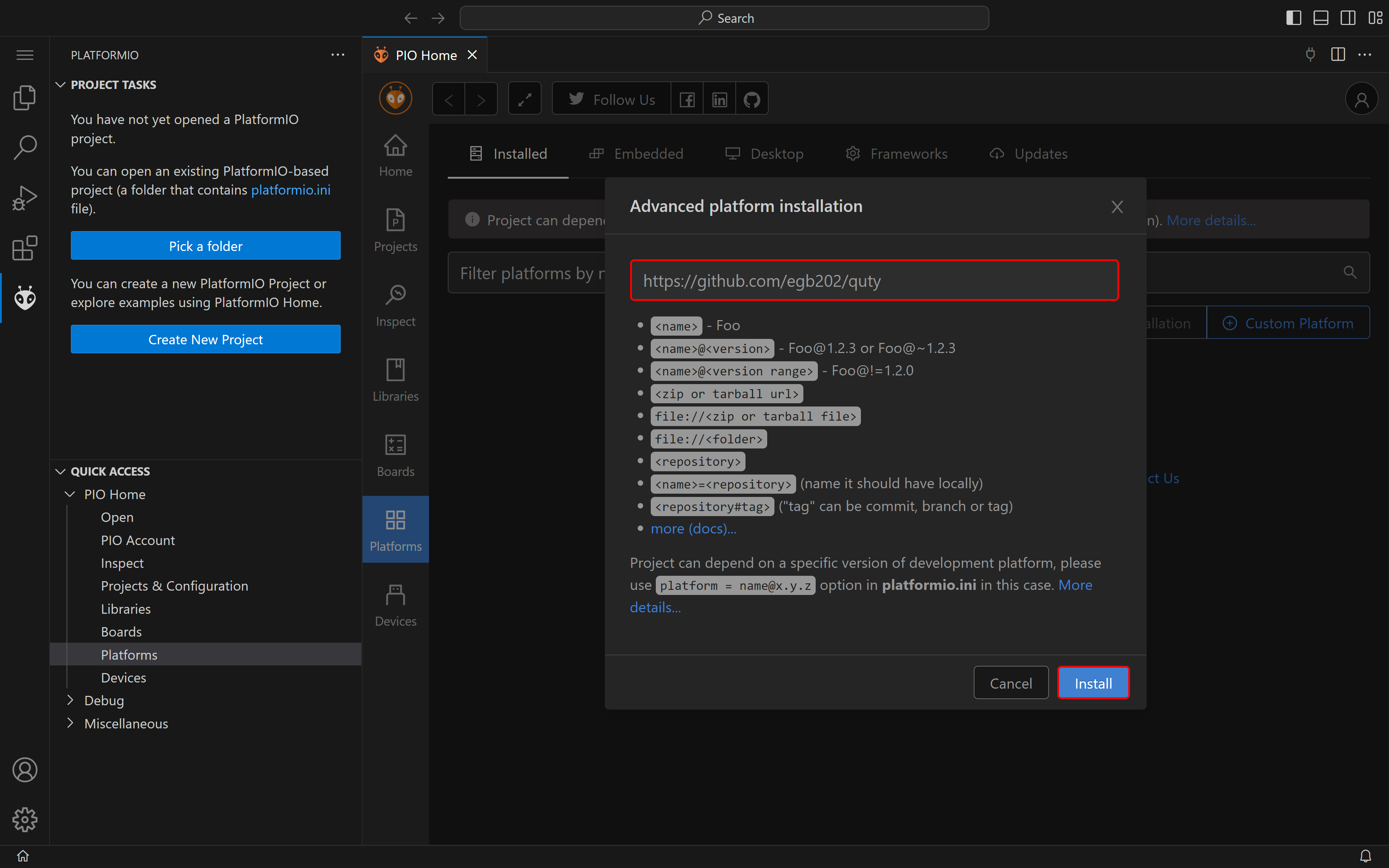
If VSCode was running during the installation of Git, you may need to restart VSCode first.
Verifying QUTy Platform Installation
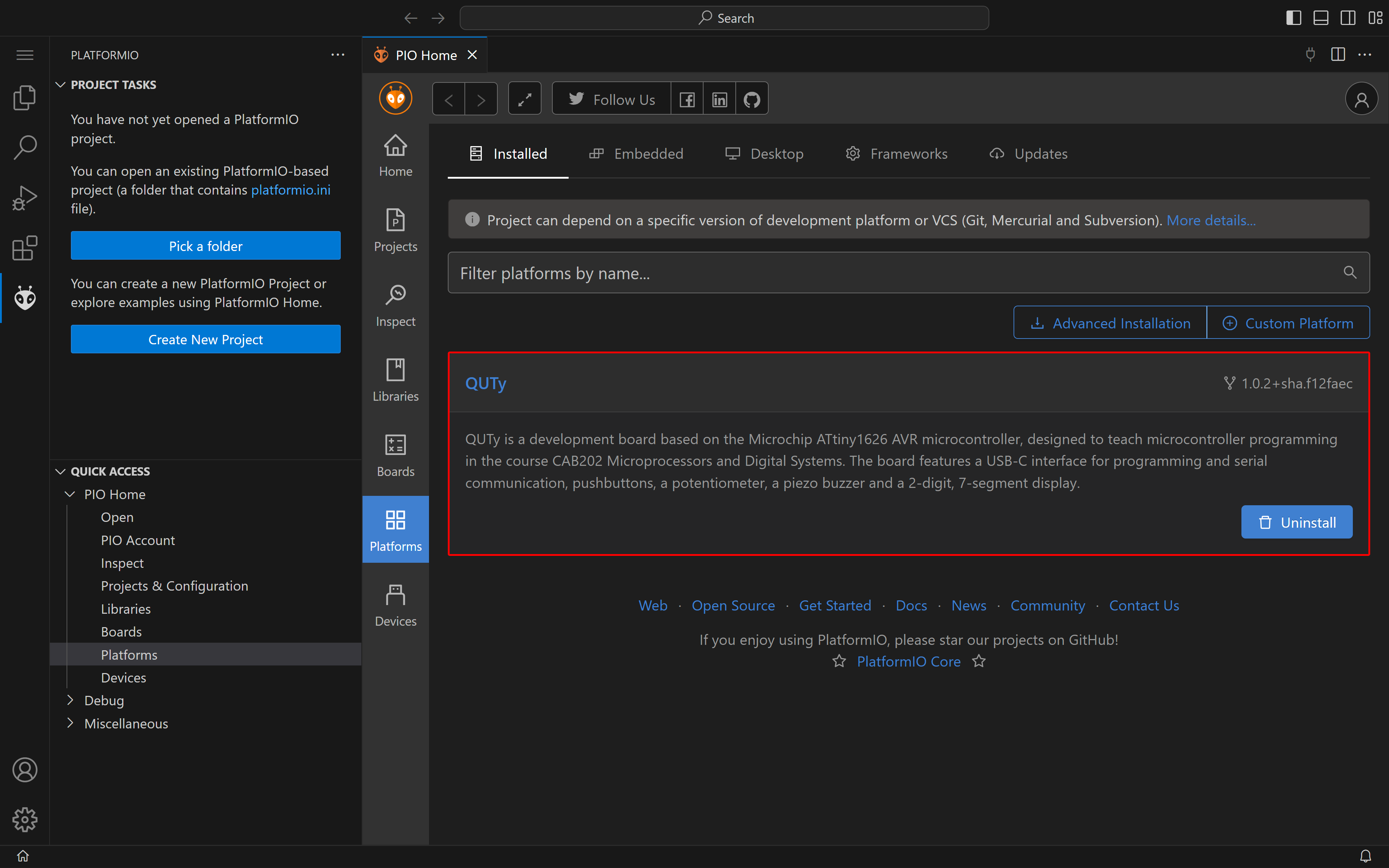
To verify that the QUTy platform has been installed correctly, navigate to Platforms and ensure that the QUTy platform is listed.
Verifying Driver Installation
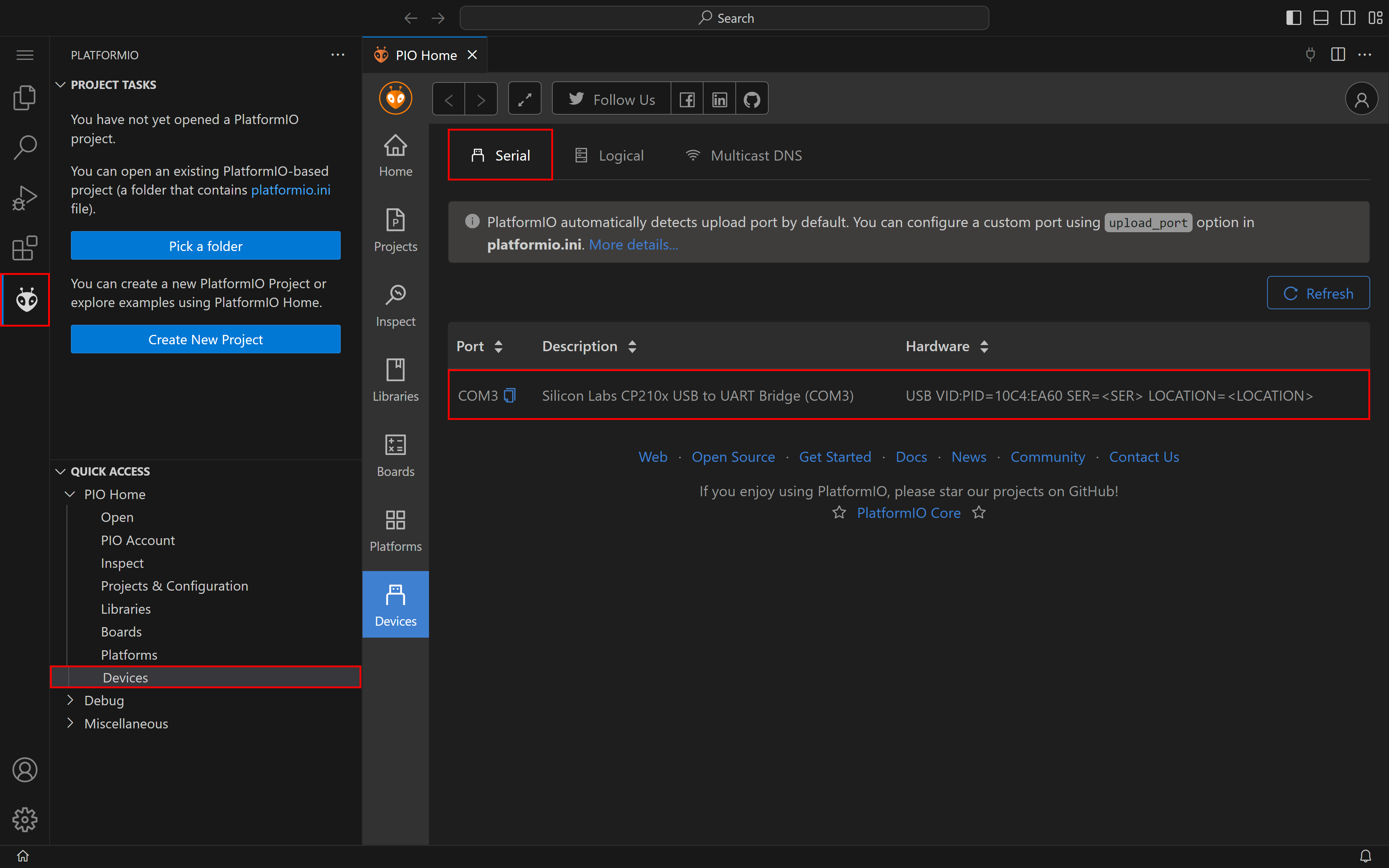
To verify that the QUTy board is able to interface with a host machine, navigate to the PlatformIO Devices tab, and connect the device using a USB cable. A new device should be listed.
The specific PORT name and description may vary depending on the host machine and the number of devices connected.
Opening a Project
Opening an Example Project
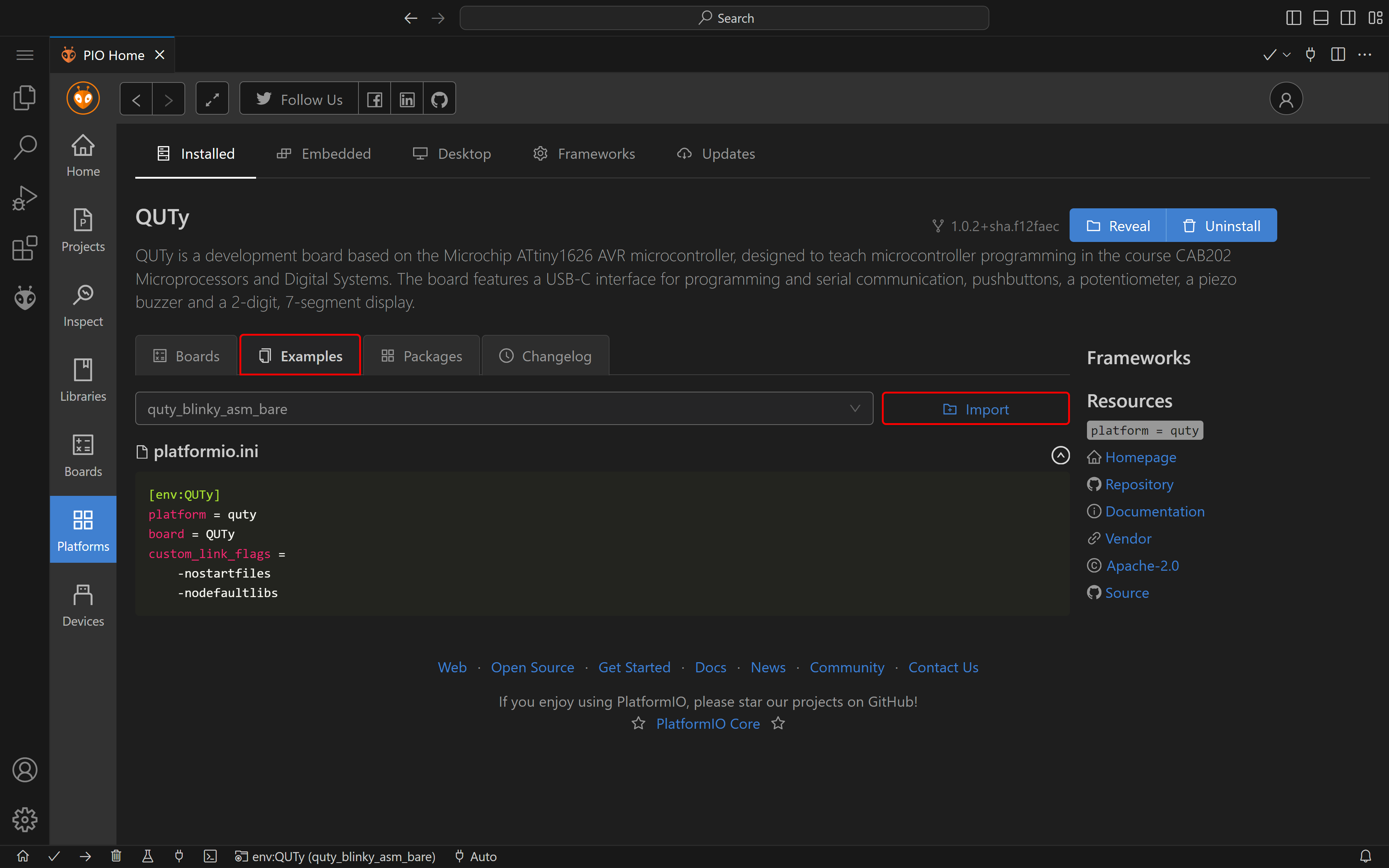
The QUTy platform offers some examples to test compilation and driver compatibility. To access these examples, click on the QUTy platform and open the Examples tab. Select the desired example and click on the Import button to clone the project to your local machine.
Opening an Existing Project
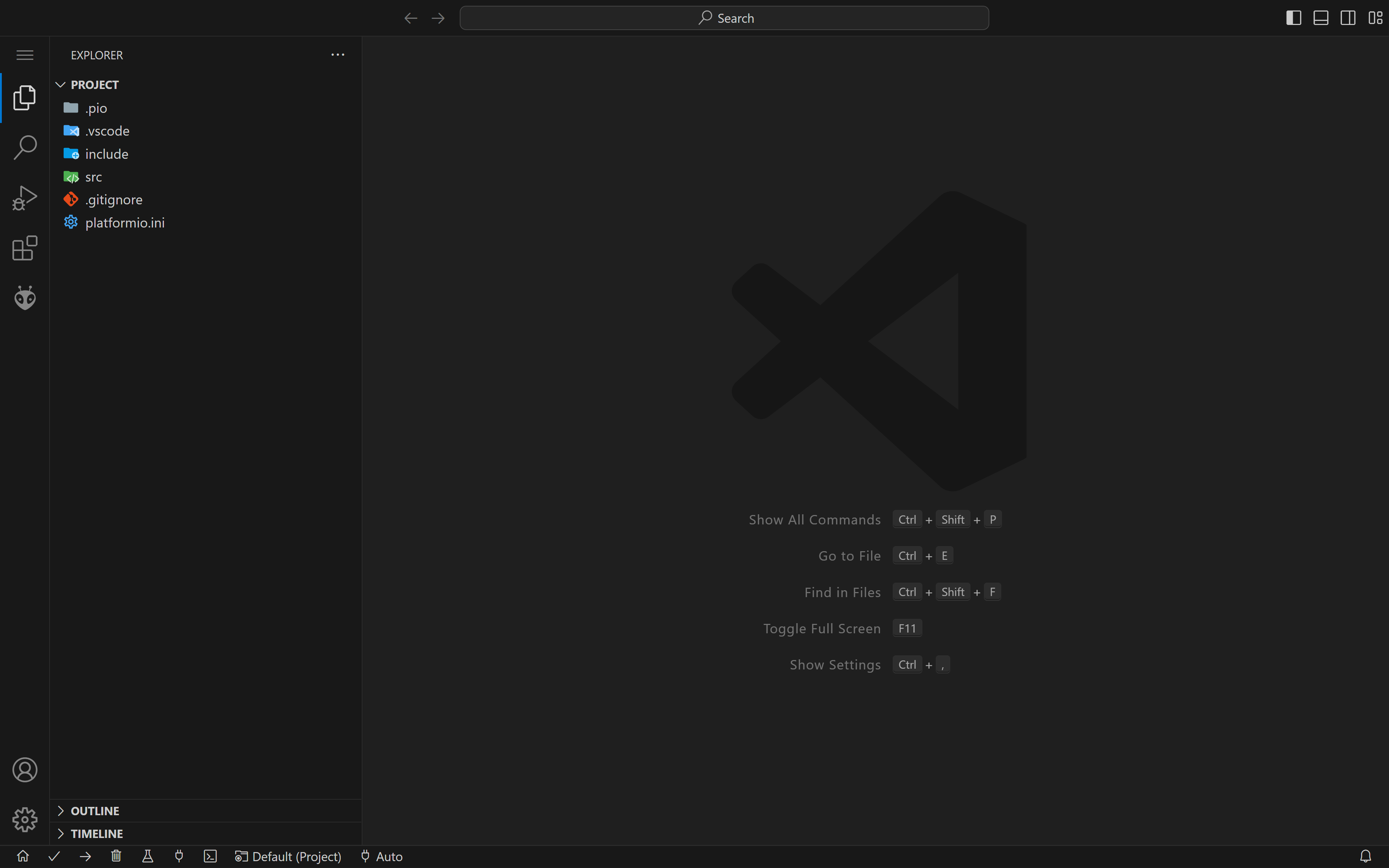
To open an existing project in VSCode, ensure that the following directory structure is maintained:
project root/
|-- .pio # generated by PlatformIO/
|   `-- build/
|       `-- QUTy/
|-- include # header files/
|   `-- other.h
|-- lib # pre-compiled programs/
|   `-- shared.o
|-- src # source code files/
|   |-- main.S
|   `-- other.c
`-- platformio.ini
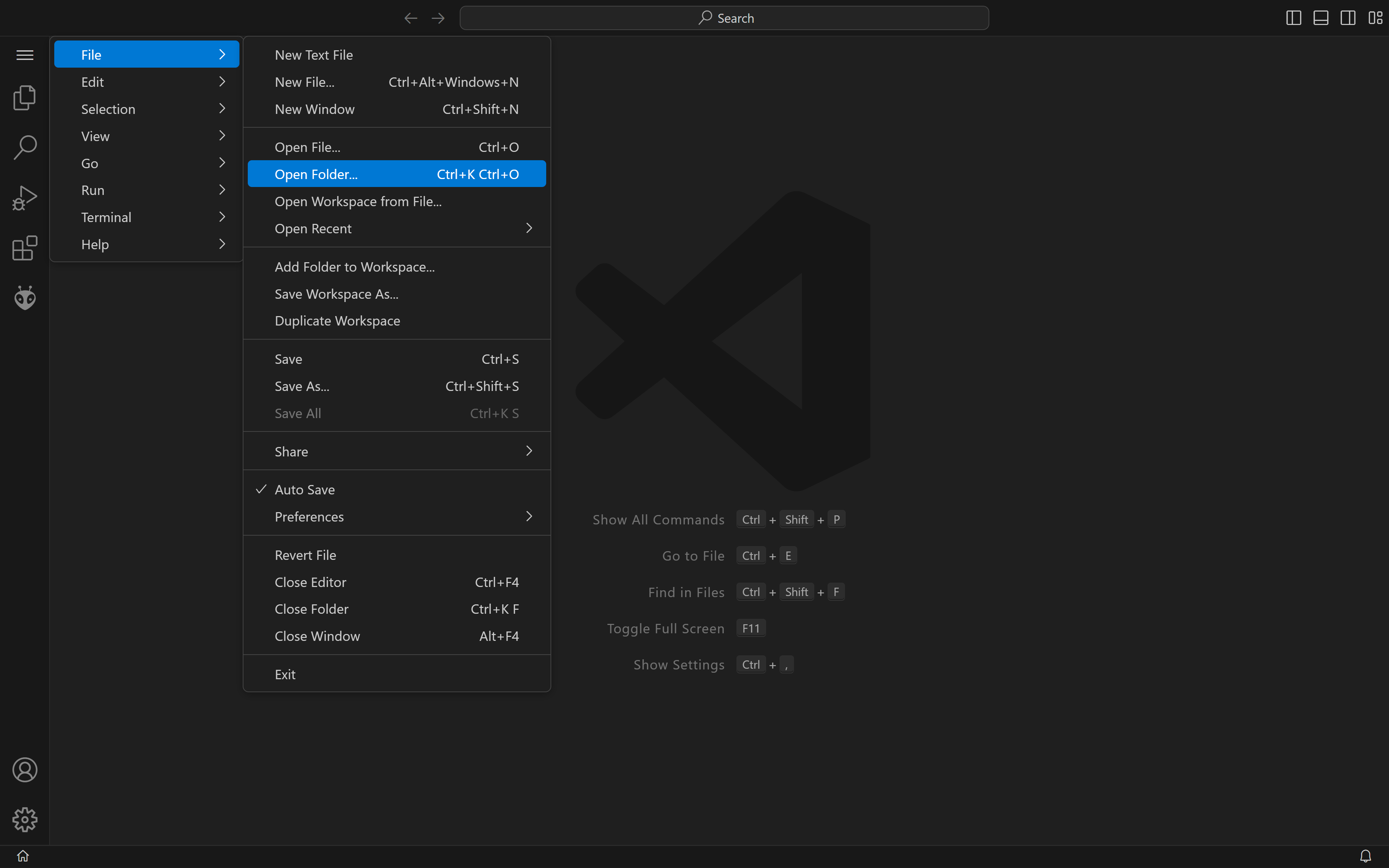
To open this project correctly in VSCode, select Open Folder and navigate to the root directory of the project.
The Explorer view in VSCode should now display the project structure as shown below:
PlatformIO Toolbar
After opening a project, PlatformIO will automatically configure the
build flags required for compilation when it detects the
platformio.ini file in the workspace root. This will reveal the
following toolbar on the top-right corner of the VSCode window:
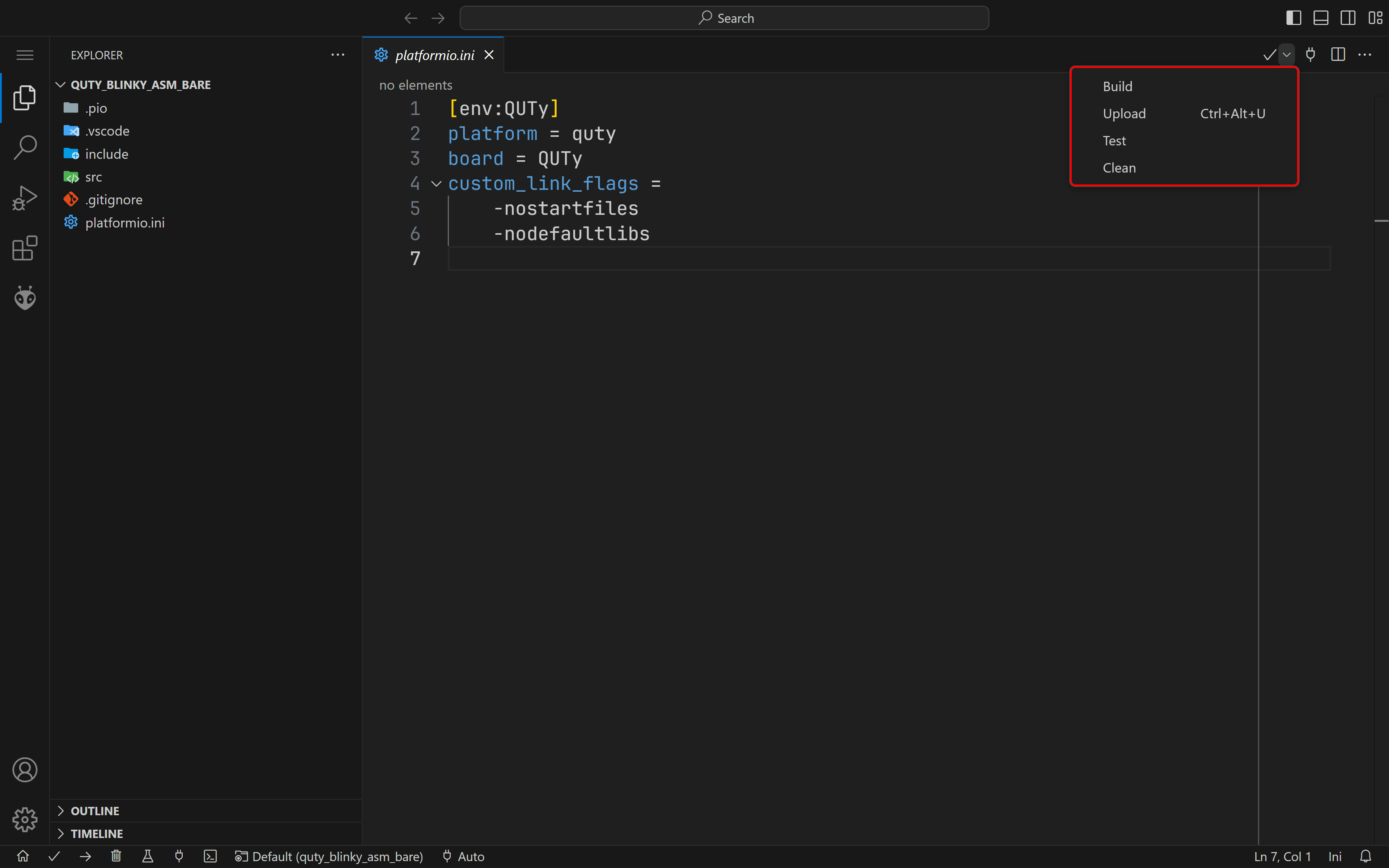
These options perform the following actions:
- Build - Assembles/Compiles the project.
- Upload - Assembles/Compiles the project and uploads the firmware to the microcontroller.
- Test - Runs the test suite for the project (not available for the QUTy platform).
- Clean - Removes the compiled binaries from the
.piodirectory. This can be useful when debugging build issues.
The above options are also displayed as icons in the status bar at the bottom of VSCode.
CLI Installation
Click to expand
For users who prefer working from the command line without the VSCode IDE, PlatformIO Core can be installed directly.
Installing PlatformIO Core
-
Download the
get-platformio.pyscript from the PlatformIO repository.# Using curl curl -fsSL https://raw.githubusercontent.com/platformio/platformio-core-installer/master/get-platformio.py -o get-platformio.py # Using wget wget https://raw.githubusercontent.com/platformio/platformio-core-installer/master/get-platformio.py -O get-platformio.py -
Install PlatformIO using Python.
python get-platformio.pyOnce PlatformIO is installed to your home directory, fetch the executable location via:
 python get-platformio.py check core
 # (Linux/macOS) ~/.platformio/penv/bin/platformio
 # (Windows) C:\Users\username\.platformio\penv\Scripts\platformio.exe
You may wish to add this directory to the system PATH variable or create an alias to this executable.
Installing the QUTy Platform (CLI)
Run the following command to register the QUTy platform within PlatformIO:
pio pkg install --platform https://github.com/egb202/quty --global
To confirm that the installation was successful:
pio pkg list --global
Building and Uploading
-
Create a
platformio.inifile in the root directory of your project:[env:QUTy] platform = quty board = QUTy -
Build your program:
pio run -
Build and upload to the QUTy:
pio run -t uploadIf PlatformIO cannot automatically determine the port, use the
--upload-portoption. Find available ports with:pio device list