Gradescope
Upon completion of a programming assignment, all source code must be uploaded to Gradescope for automated grading. Before doing so, ensure that the code compiles without warnings or errors. This can be done by building the project using PlatformIO.
Table of Contents
Logging in to Gradescope
Access the Australian Gradescope site using the following URL: Gradescope AU.
Students are not required to create an account on Gradescope and can instead login using SSO (Single Sign-On) by clicking the “Log in with School Credentials” button. This will display a list of available institutions, from which “Queensland University of Technology” should be selected.
Once logged in, the relevant course and assignment can be selected from the dashboard.
Uploading a Project
To upload a project to an assignment portal, follow the steps below:
-
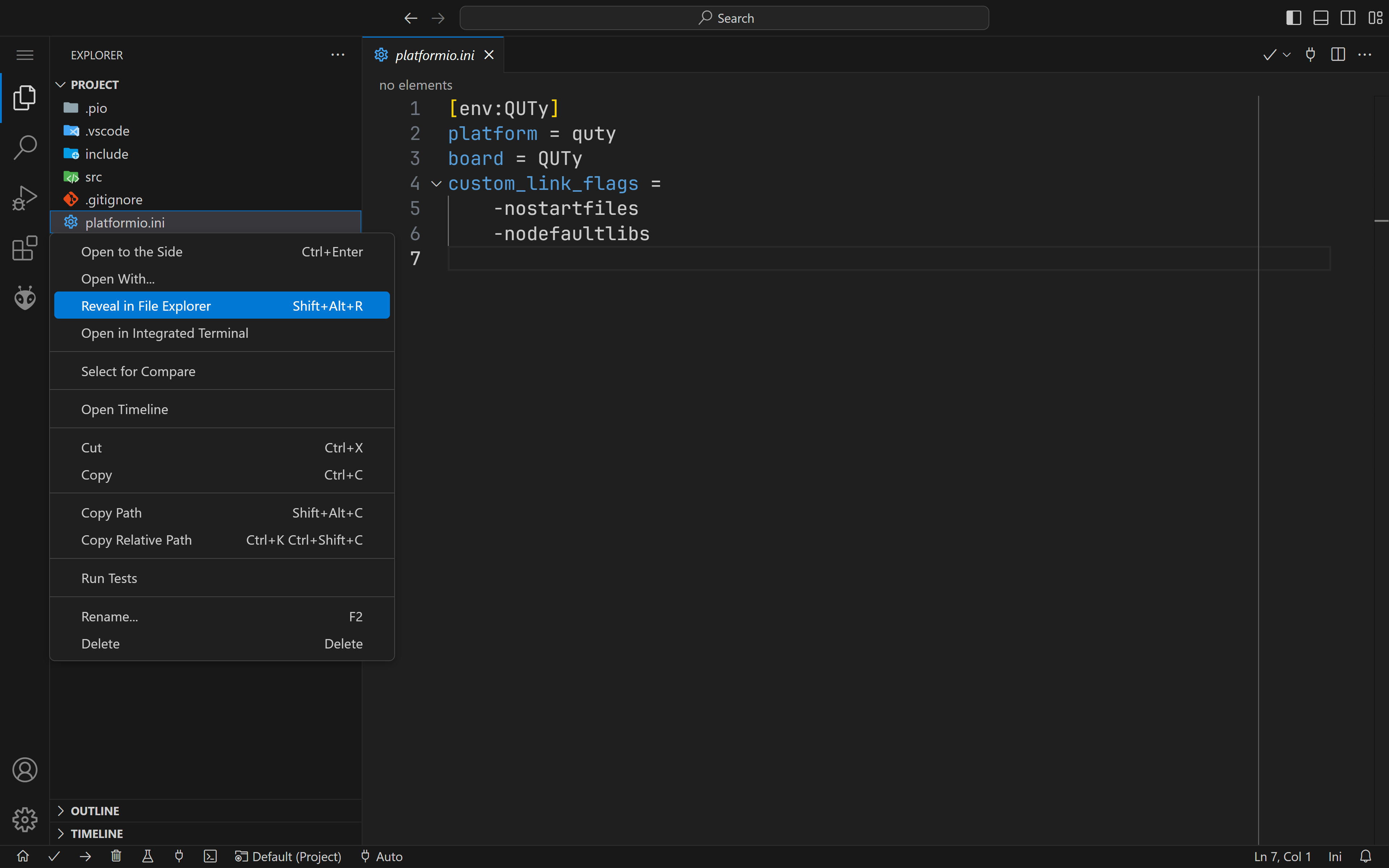
Open the project directory in a file explorer. This can be done by right-clicking any file in the Explorer tab on VSCode and selecting “Reveal in File Explorer”.
-
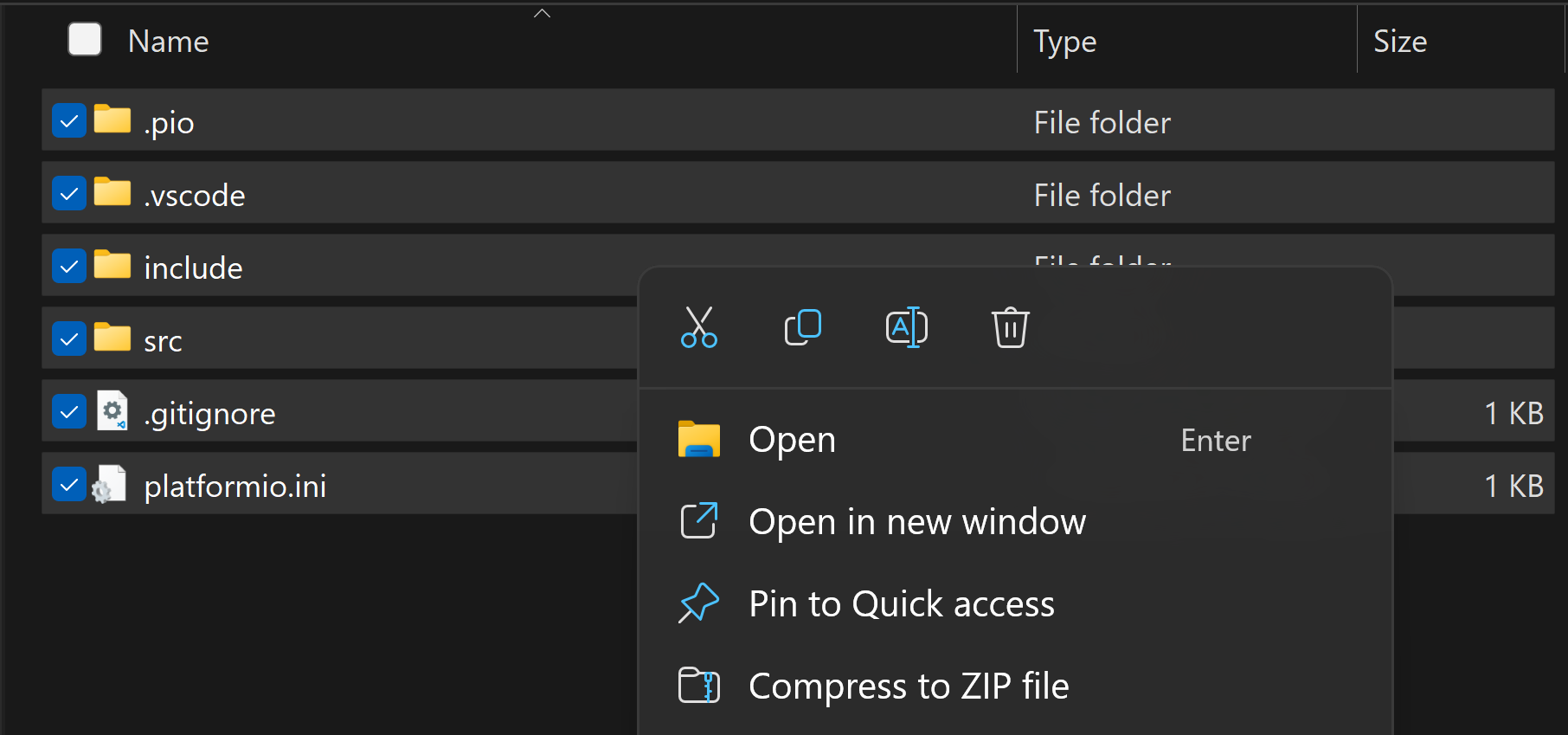
Select all files inside the project directory and create a ZIP archive. Most operating systems have built-in support for creating ZIP archives.
- Click on the relevant assignment to open the submission box. If resubmitting, click the Resubmit button on a previous submission.
- Drag and drop the ZIP archive into the submission box.
- Click the Upload button to finalise the submission.
A successful submission should display results for each exercise within the assignment.